How can we generate the student attendance report?
The Day-wise Attendance Report will display the number of students present in your institution, as well as the number of students absent in each batch on a particular day. The Day-wise Attendance Report is available only if you mark student attendance Daily.
Only the administrator or a privileged employee (the Student Attendance View privilege is required) can view the Day-wise Attendance Report.
Click the module access icon > Academics > Attendance > Day-wise Attendance Report. By default, the report displays the student attendance count of all batches for the current date.
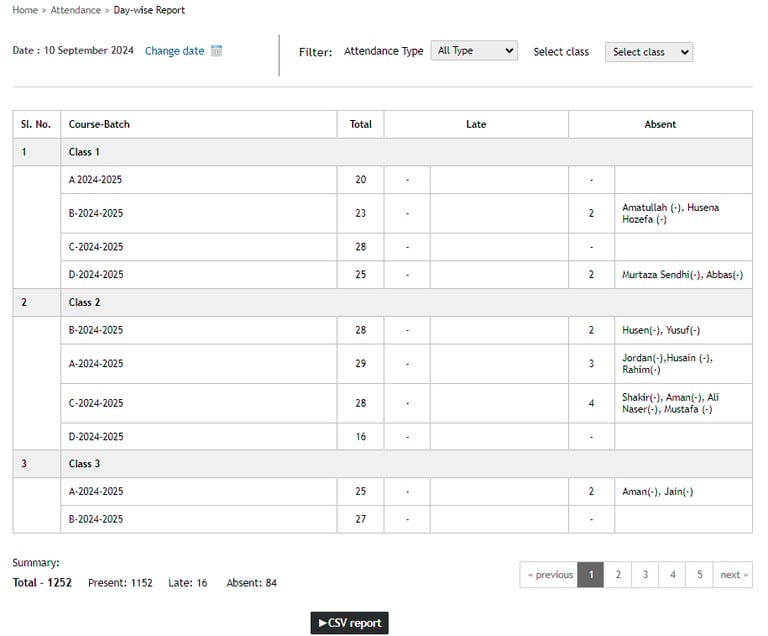
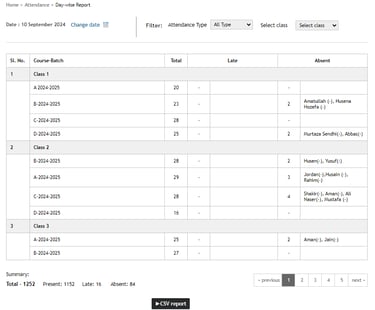
To view the student attendance count for a any other dates, select the required date from the date picker option at the top left corner.
Attendance Type filter can be used to filter the attendance type i.e Absent or Late
Select Class field can be used to view the number of students absent in each batch of a particular course. You can then click on a batch to view the names of absent students.
To generate a CSV report of the number of students absent in each batch, click the CSV report button.
Contact
Get in touch with our support team anytime.
Phone
info@sharakshara.com
+91 8073157220
© 2025. All rights reserved.