How to configure the Basic General Settings?
Address
The first three column form the complete address of the institute.
Institution type
Specify the institution type when setting up your institution. The institution type can be set to:
K-12 – Refers to educational institutions that cover kindergarten all the way to class/grade 12 (primary and secondary education).
If the option K-12 is selected, the term ‘Class’ will be used throughout Sharakshara's interface to indicate ‘a year of education’. ‘A year of education’ can be, Grade 7, Class 7, Standard 7, or Form 7, depending on your country's educational system.
Higher Education – Refers to educational institutions such as universities and colleges that offer education beyond secondary education. For example, a two or three-year degree of a chosen subject.
If the option Higher Education is selected, the term ‘Course’ will be used throughout Sharakshara's interface to indicate ‘the study of a particular topic in an institution. Examples of courses are Zoology, Business Administration, and so on.
If the institution type is not specified, by default the term ‘Course’ will be used throughout Sharakshara.
Student Attendance Type
This can be daily basis or subject wise as provided in dropdown
Start day of the week
Set any weekday as the first day of the week based on your institution’s academic calendar. The change is reflected in the Calendar module, in the Timetable module when settings weekdays for a batch, as well as when creating a timetable.
Date format
Set the date format to determine how dates will be displayed throughout Sharakshara. The available date formats are:
DMY – Date/Month/Year
MDY – Month/Date/Year
YMD – Year/Month/Date
Dates are displayed in either predefined long formats or short formats.
Date FormatLong Date FormatShort Date FormatDMY10 March 198610/03/1986, 10-03-1986MDYMarch 10, 198603/10/1986, 03-10-1986YMD1986 March 101986/03/10, 1986-03-10
Note: Time is also consistently displayed in 12 hour format (HH:MM AM/PM) throughout Sharakshara. For example, 11:30 AM.
Date separator
Set the date separator to determine how dates will be displayed throughout Sharakshara. The available date separators are:
/ (forward slash)
- (hyphen)
Language
The admin can set the default language of the application here.
Time Zone
The time zone of the area can be set here
Country
The admin can set the default country here
Currency type
This enable user to enter the type of currency on which transactions happens in that institute.
Upload logo
The logo of the institute can be uploaded by this option. The size of the logo must be 500KB max, (W)150x110(H)px.
Moodle URL
This is the field where you have to enter the URL for the moodle installation.
Include Grading Systems
You can select which all grading formats are needed for the report generation for the examinations conducted
Select theme
The admin can set the Sharakshara theme colour.
Select font
Select the font to be applied to the your Sharakshara interface. Seven fonts are currently available.
Enable auto increment
Auto increment of student admission number and employee number can be done by checking this box.
Enable password change at first time login
User can change the password the first time they login, if this option is enabled.
Enable roll number for students
Select the checkbox if you are going to assign roll numbers to students. If you select this checkbox but do not assign student roll numbers, roll number columns throughout Sharakshara will be remain blank. So if you decide not to assign student roll numbers, we recommend not to select the checkbox.
Enable auto-logout
Enabling the auto-logout feature forces the selected group of users to automatically log out from the Sharakshara.
We can set particular time duration after which they will log out, and can also select set of users which include Employee, Parent and students.
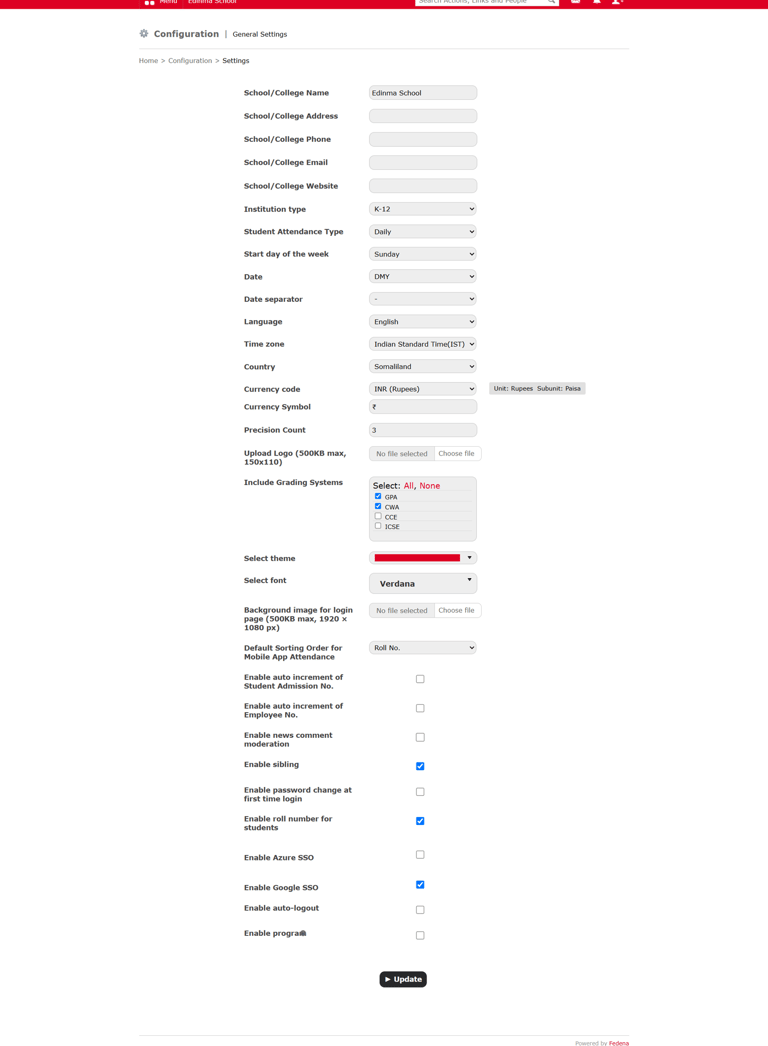
General settings is available in the Setting modules. We can make the basic configuration of the institution from the General settings as shown in the figure below. The number of fields on the General settings page may vary depending on the number of plugins made available to your institution.
Contact
Get in touch with our support team anytime.
Phone
info@sharakshara.com
+91 8073157220
© 2025. All rights reserved.